
Last reviewed: August 3, 2026
This comprehensive guide outlines all required information for a CLEaR license renewal, including owners, financial interest holders, Labor Peace Agreement requirements, declarations, fee assessment, supporting documents, and payment steps. It provides clear, step‑by‑step instructions to help you complete each part of the renewal process.
Owners Verification

To begin, verify that the List of Owners and Entity Ownership is current. If either list is inaccurate, the licensee must submit Form DCC LIC 027: Notifications and Requests to Modify a License and email the completed form to licensechange@cannabis.ca.gov. After submitting the form, you may continue with the renewal process.
For additional guidance, refer to the Owner Submittal Form DCC 9101,which provides details on ownership requirements used by The Department to determine eligibility for licensure. Failure to provide accurate and complete ownership information may result in processing delays.
Financial Interest Holders

Verify that the Financial Interest Non-Owners and Entity Financial Interests sections are current. If either list is inaccurate, the licensee must submit Form DCC LIC 027 and email the completed form to licensechange@cannabis.ca.gov. After submitting the form, continue with the renewal process.
Labor Peace Agreement (LPA)

Select your response to the questions about the number of employees. Based on your selection, you will need to upload either a notarized Form DCC 9205 or a copy of the Labor Peace Agreement (LPA) signature page when you reach the document-upload section. You must also provide the labor organization and LPA expiration date.
Click Continue to proceed to the next page.
Declarations

Select Yes or No in the Declarations section, then click Continue. If you select No for the declaration made under penalty of perjury, an error message will appear, and you will not be able to complete the renewal. For assistance, email Licensing@cannabis.ca.gov.
Note: For Distributor‑Transport Only renewals, you must include your License Type and License Number in the Declarations section.
Fee Assessment

In the Fee Assessment section, select the estimated gross revenue for the business’ 12‑month license period. Then enter the total gross revenue to date for the current license period. Select Continue to move forward.
Documents
The next section requires you to upload documents to support your total gross revenue for the current license period and verify compliance with Labor Peace Agreement requirement.
Examples of acceptable gross revenue documentation include, but are not limited to:
- A copy of the licensee’s state tax return
- A detailed Profit and Loss statement (P&L) statement showing gross revenue for the license period
Click Add for each document in the list. Upload all required documents, then click Continue.

Review
Please review all information for accuracy. Select the Edit button to make any necessary changes.
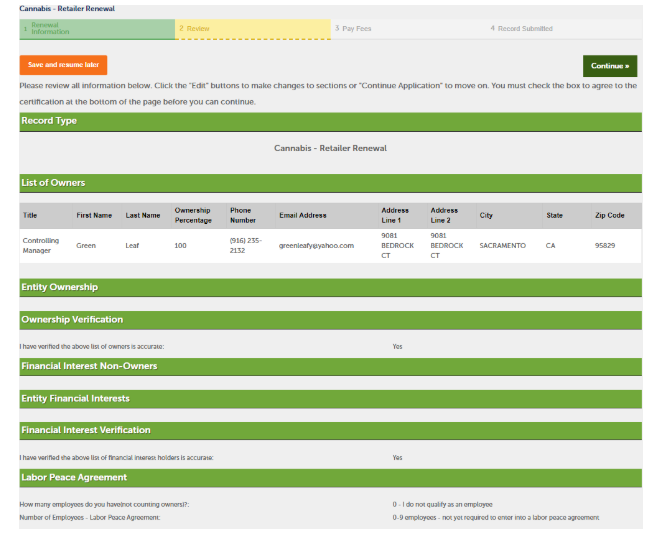
Continue to review

Please read the Important Notice section, then select Continue.
Payment
On the Pay Fees page, select Check Out to pay with a credit or debit card. You may also choose to pay by cash by scheduling an in‑person appointment at one of the Department’s three office locations, or you can mail in a check. These payment options are the same ones used for your license fees. For more information about payment methods and office locations, visit our payments page.
Fee deferrals

Note: If you are requesting a fee deferral, select Cash Payment. After your renewal is processed, you may email equity@cannabis.ca.gov for confirmation. To learn more about fee relief, visit the Department’s equity fee relief webpage.
Paying by cash or check

If you choose Cash or Mail‑In Check, the system will display a confirmation message and send you an email reminding you to pay the fee.
Using a credit or debit card
If you choose the Credit/Debit Card option, the Pay Now page will display your application number and the fee you are about to pay. Select Checkout to continue.

You will be redirected to a third‑party payment page. Enter your billing address and payment information in the required fields, then select Submit.
Note: A processing fee is charged by the payment processor for credit or debit card transactions.

A confirmation message will appear once your payment has been successfully processed.

Viewing your license
After your payment is processed, and if there are no outstanding issues, you will see a new date under the Expires On column showing that your license has been renewed for one year.

Continue to next article
-
CLEaR renewal: Printing your license
This guide provides instructions on how to print your CLEaR renewal license. It outlines the steps to access your license record, download the certificate, and ensure you have the correct documentation for your records and compliance requirements. Printing your license certificate In your portal, open My Records and locate your license number. Select the License…