
Last reviewed: August 3, 2026
This guide offers instructions for reporting and managing resources for your science amendment request, including options for creating a science amendment in the licensing portal and details on how to identify proposed changes and update the premises address.
There are two ways to add a science amendment:
- All active license records listed on the “My Licenses” page now have an “Amendment” button. Select Amendment to begin.
- You can also click the blue license number to open the record, then select Create Amendment.
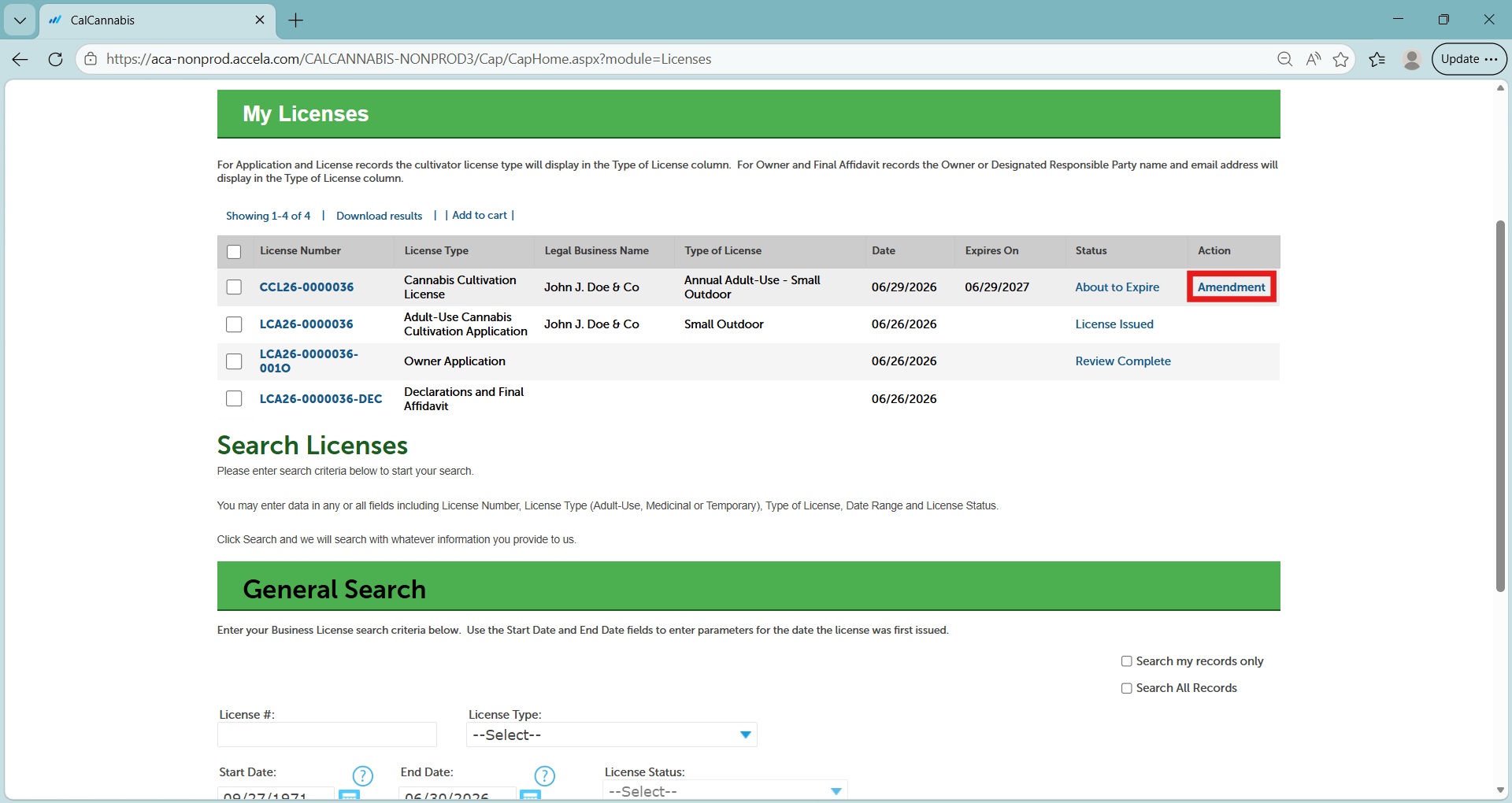
Method via “Amendment” button.
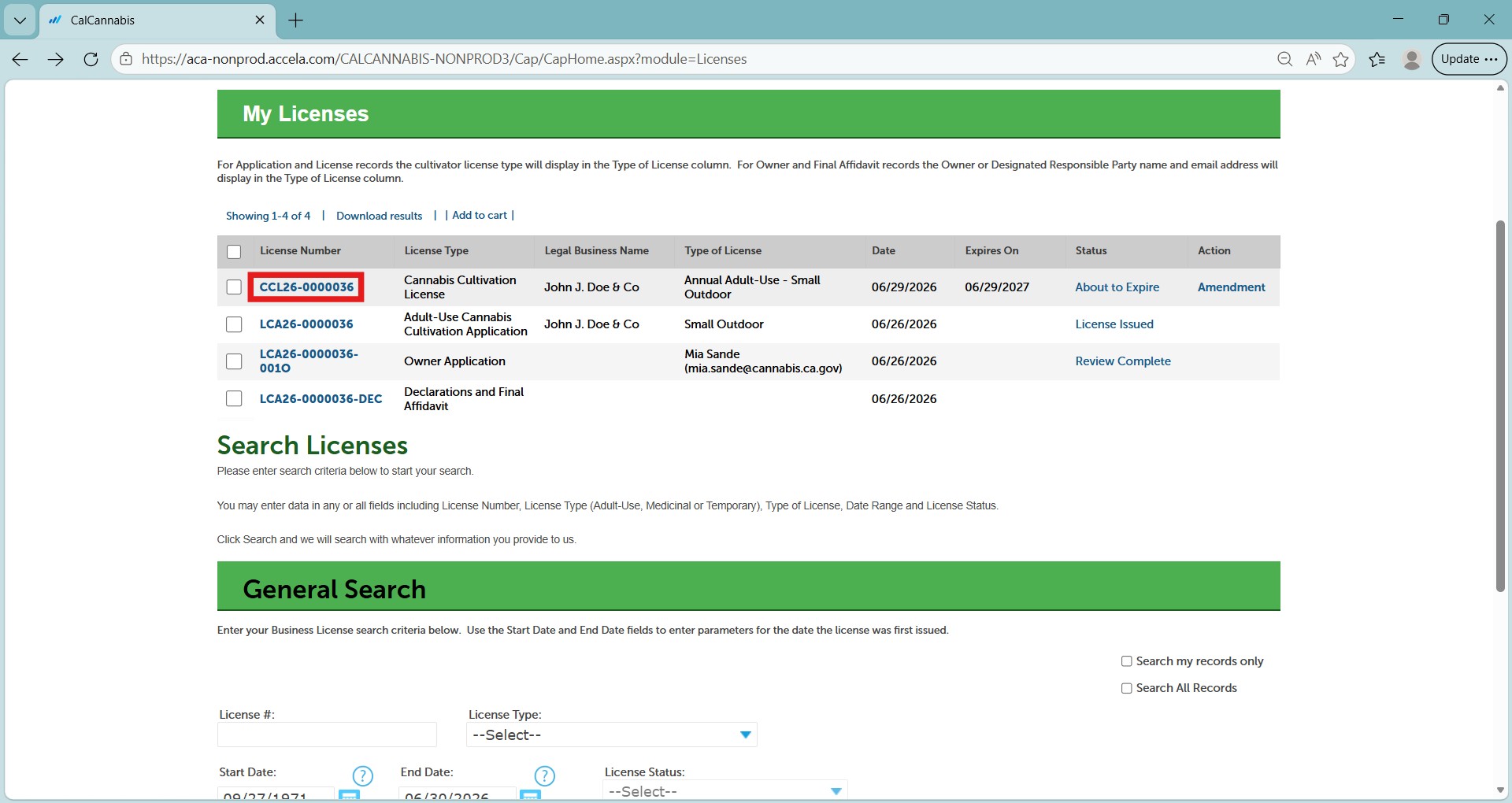
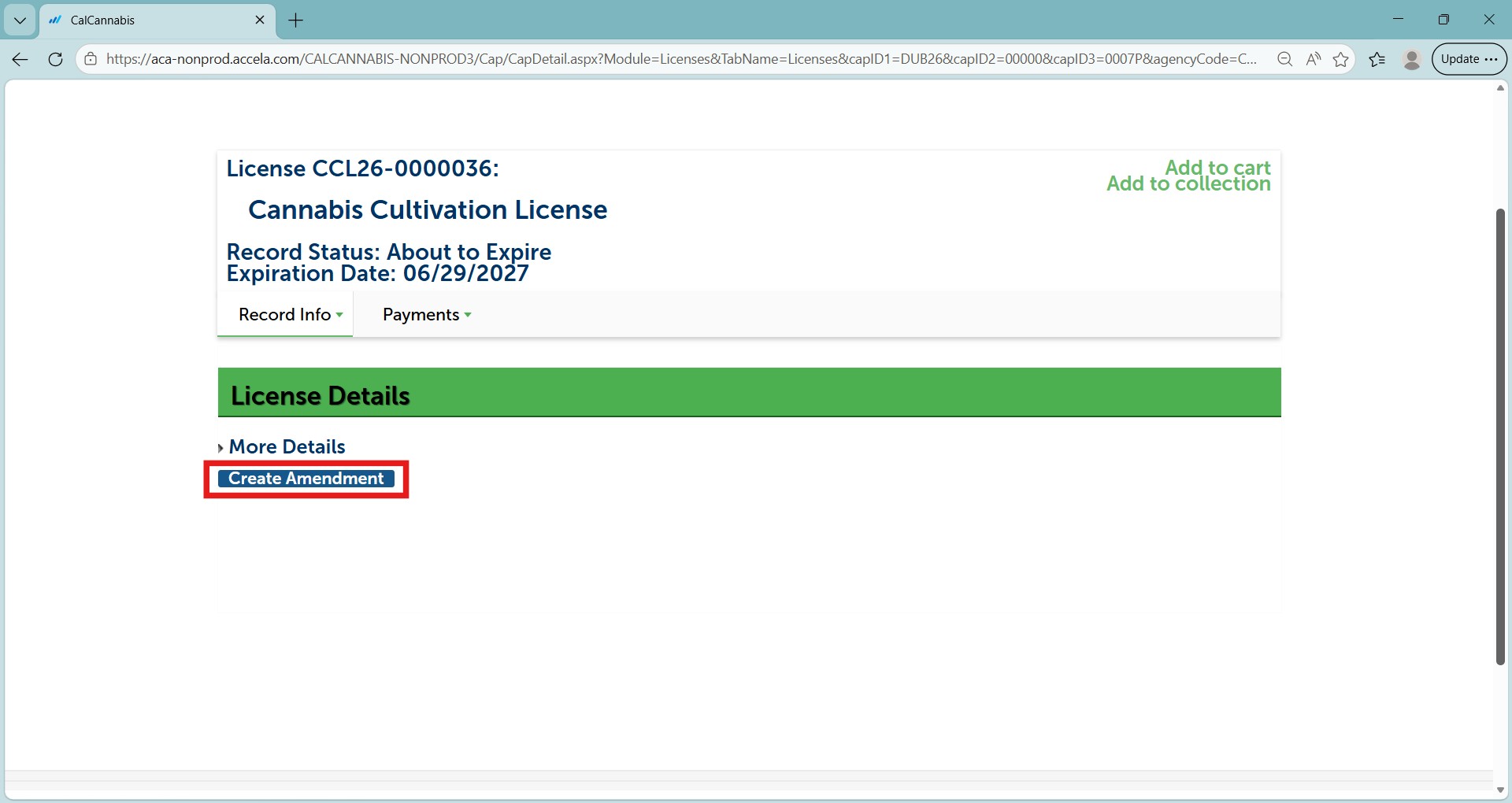
Alternative method through license record number.
Amendment type
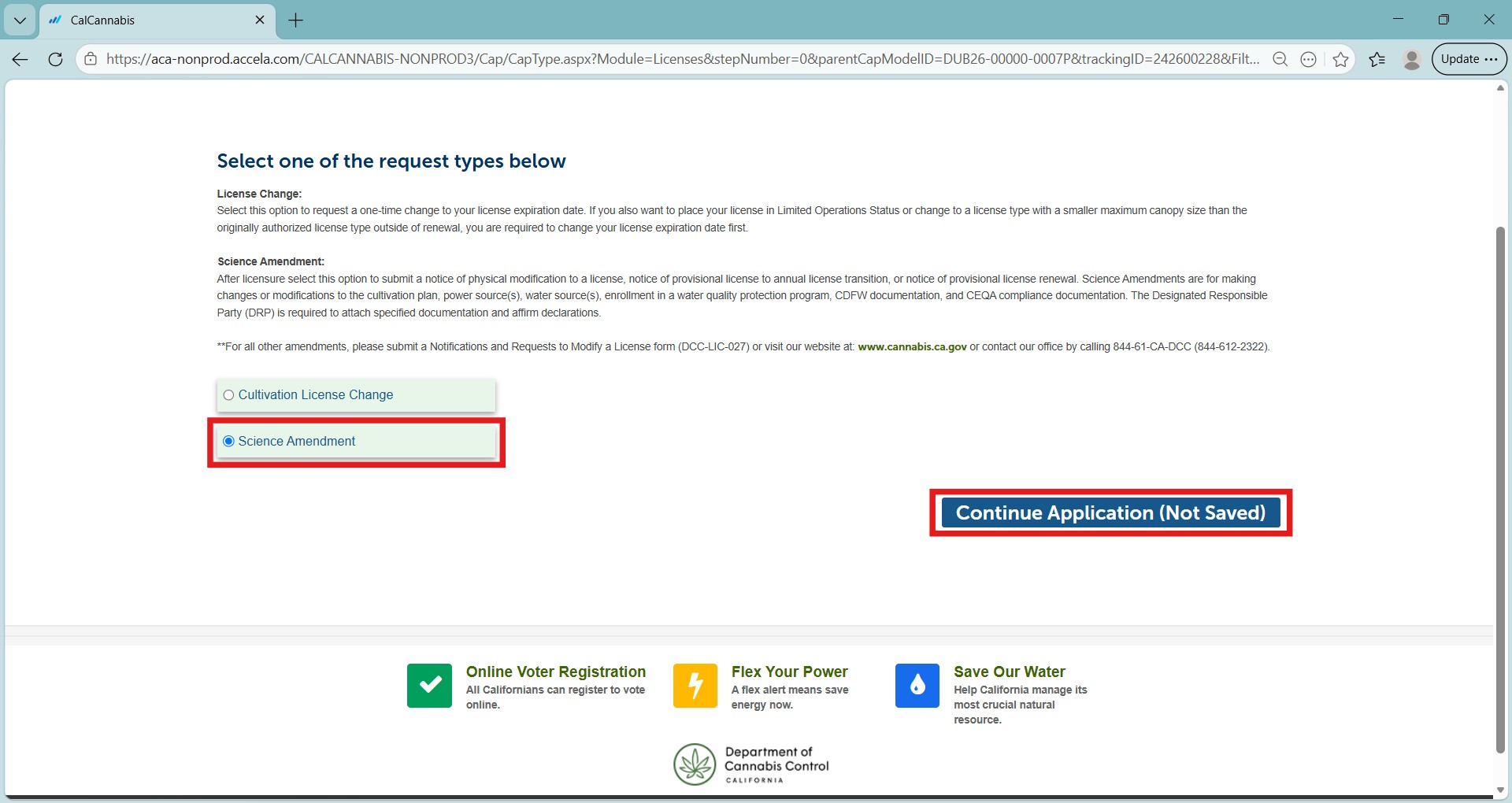
On the first page, select Science Amendment and then Continue Application.
License information
Review the information displayed for accuracy, as mentioned in the instructions.
Note: You cannot change any fields here. the box can be expanded by dragging the lower right corner.
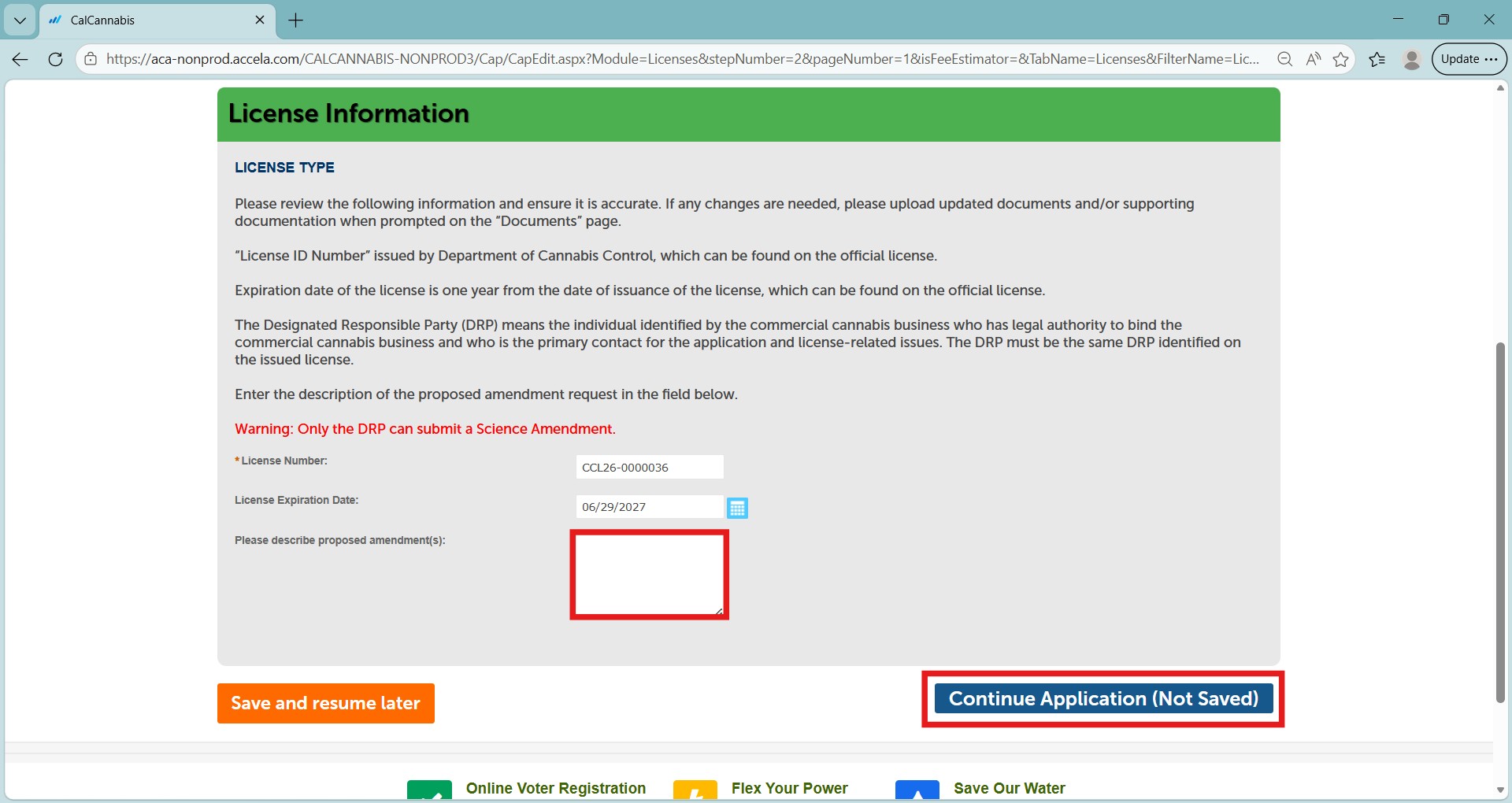
Write a note in the box to:
- Clarify and identify proposed physical modification(s) to the cultivation plan
- Discuss if the provisional license is to transition to an annual license
- If additional documentation is being provided prior to the renewal of a license, or
- If modifications are made to previously reported electricity usage
Select Continue Application to proceed.
Premises information
You can make changes to your address information or your Assessor Parcel Number (APN) by entering new values in the fields on the right.
You can also change Additional Premises information in the lower section. This is supplemental address information if your premises spans multiple APNs, not for additional sites.
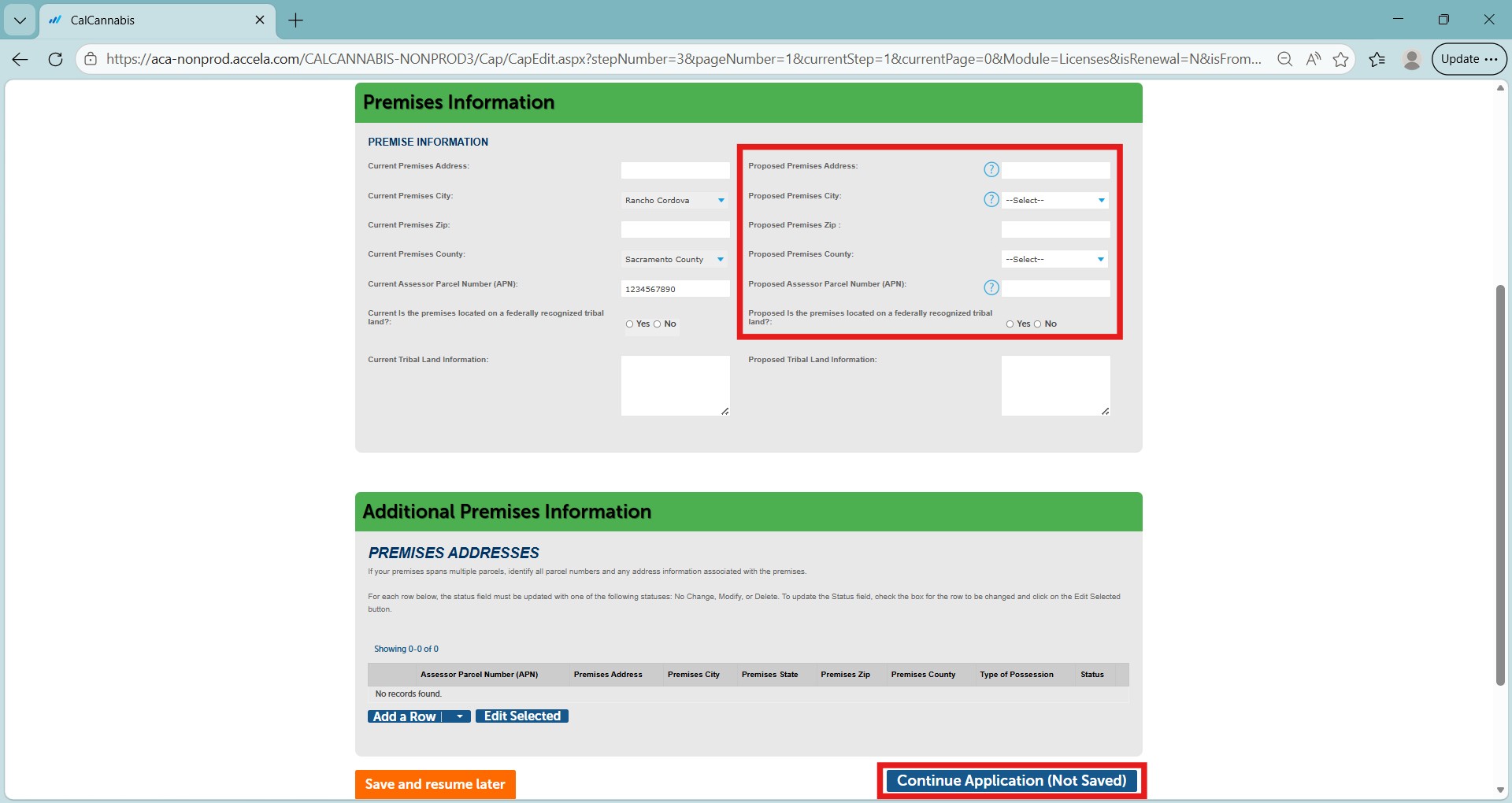
The Additional Premises Information is the same information recorded on your current license. This table can be used to edit, add, and delete rows.
To edit a row, select the checkbox next to one of the APNs and select Edit Selected.
You can select Actions and Edit from the row you would like to change.
A new window will open, allowing you to make changes.
Note: Status field must be updated with one of the following statuses: Delete, Modify, or New.
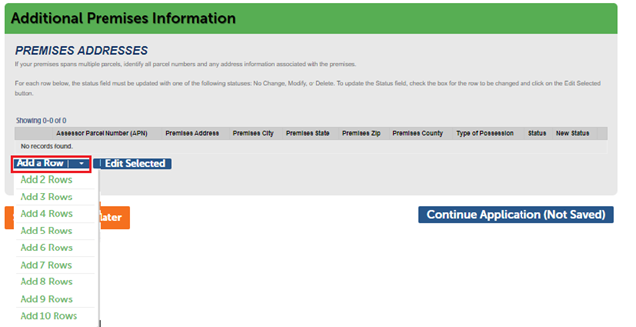
Select Add a Row to add new information. You can add up to 10 Rows at a time.
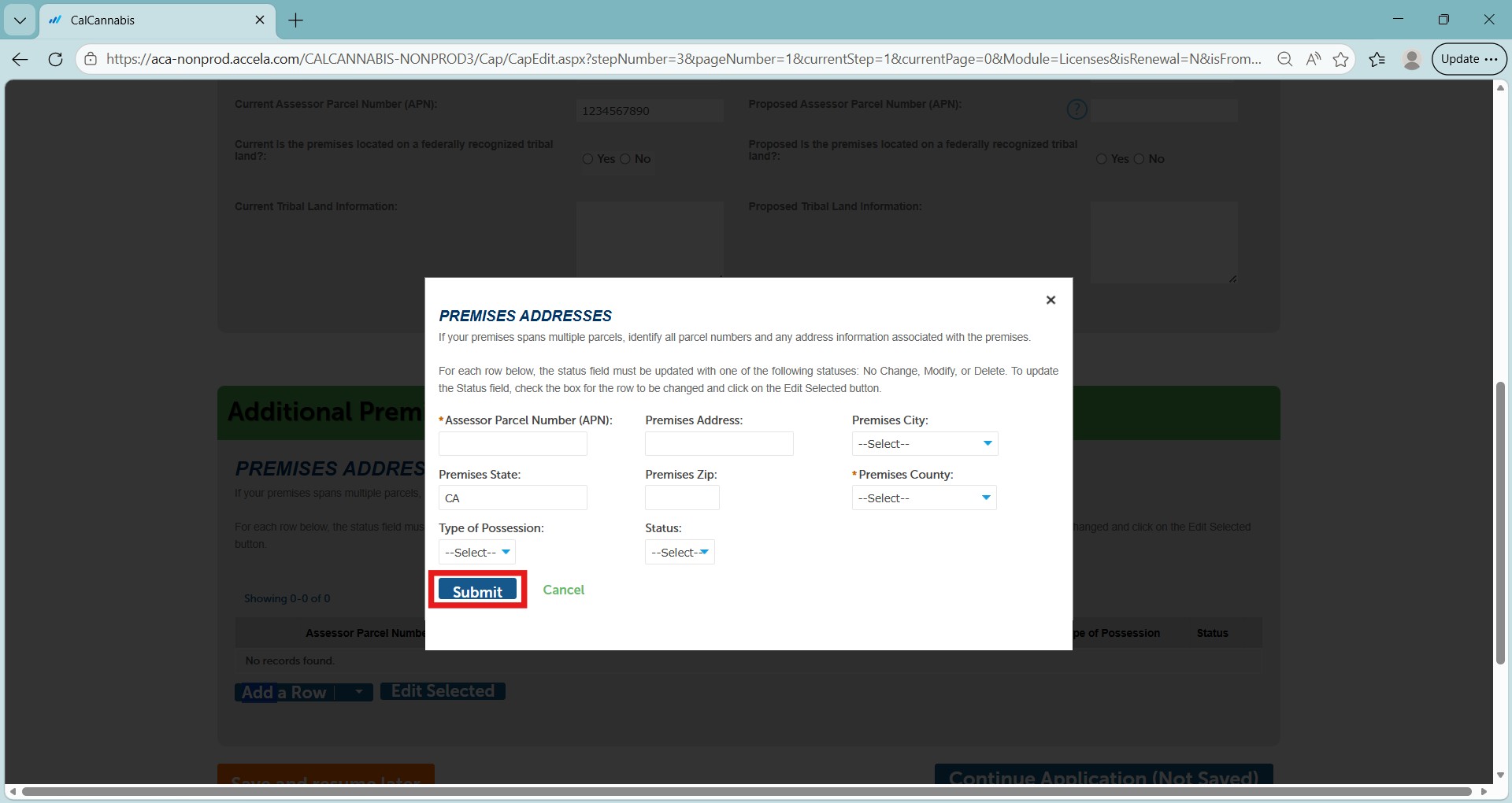
A new window will open, allowing you to add additional information. Status field will automatically select New.
After making any changes, select Submit to close the form.
Select Continue Application to move on to the next page.
Continue to next article
-
Science amendments: Power, water and electricity information
This guide provides detailed instructions on reporting and managing key resources for your science amendment request. It covers the identification and documentation of power sources, water supply sources, and electricity usage. Additionally, it includes information on calculating and understanding the Average Weighted Greenhouse Gas Emission Intensity (GGEI) related to…