
Last reviewed: August 3, 2026
To apply for a license in the CLEaR system, start by choosing a license type from the options on the Home Screen. The application will guide you thought submitting required information, completing declarations, and uploading documents. You will also provide details about owners, financial interest holders and required business contacts.
From the Home screen, select the type of license you want to apply for.
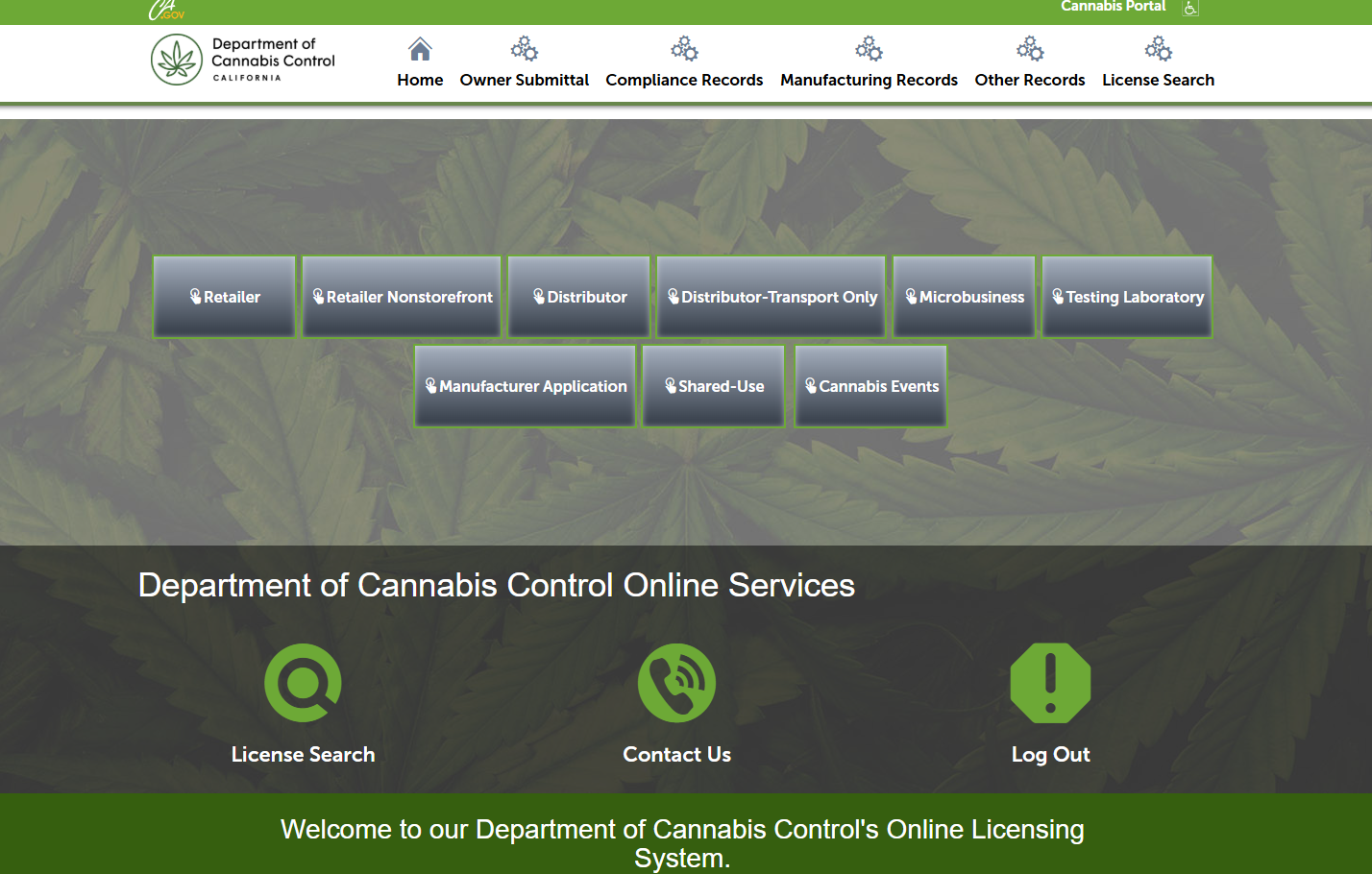
Available license types include:
- Retailer
- Retailer Non-Storefront
- Distributor
- Distributor-Transport Only
- Microbusiness
- Testing Laboratory
- Manufacturing
- Shared-Use (note: for manufacturing facilities only)
- Cannabis Events
General disclaimer
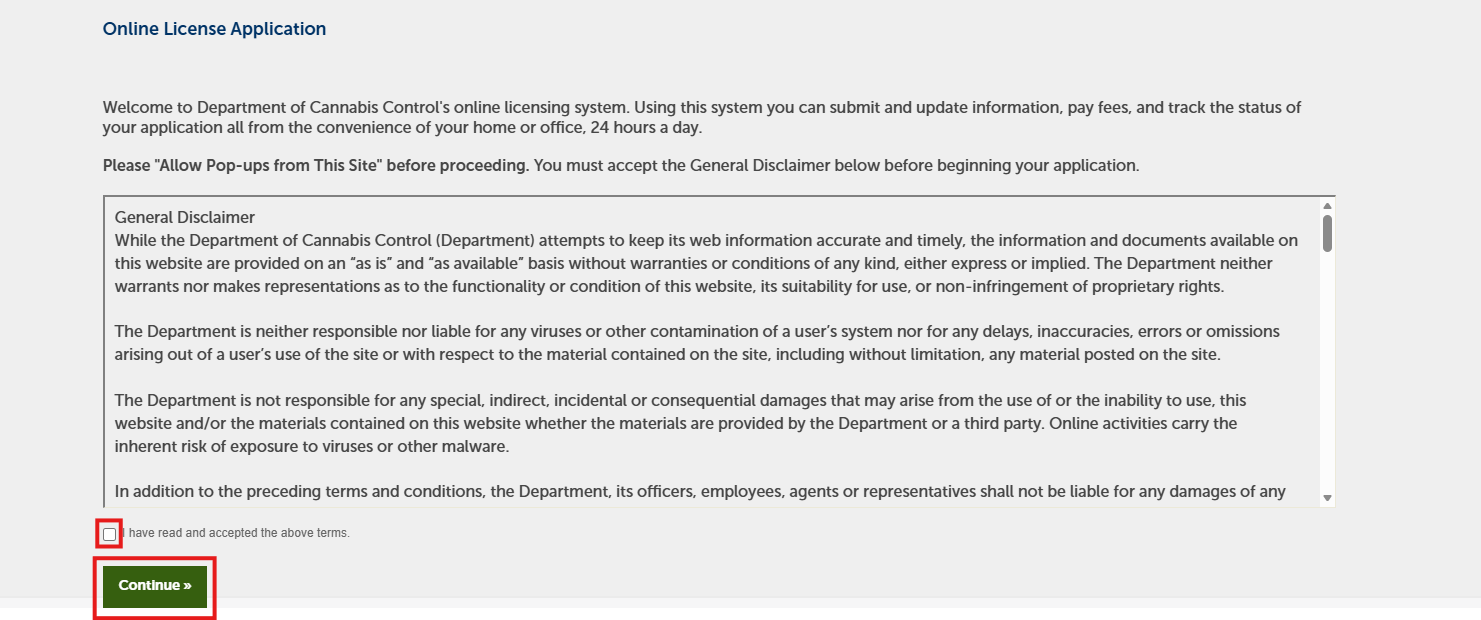
After selecting a license type, review the General Disclaimer. Check the box to accept, then click Continue.
License designation
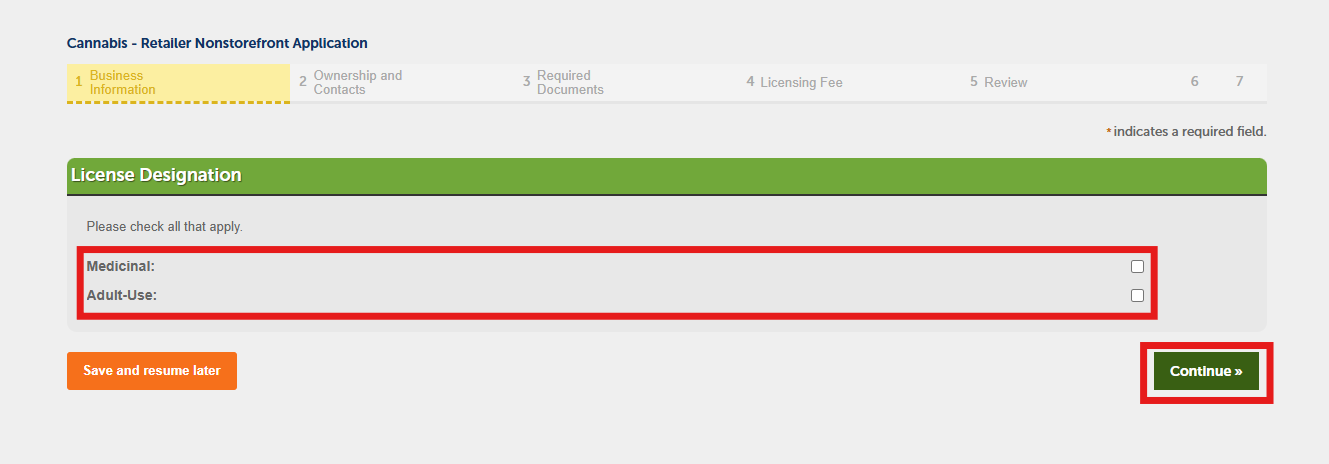
Choose whether you are applying to an Adult-Use license, a Medicinal license, or both, depending on what your local jurisdiction permits. Click Continue to proceed.
Business activities
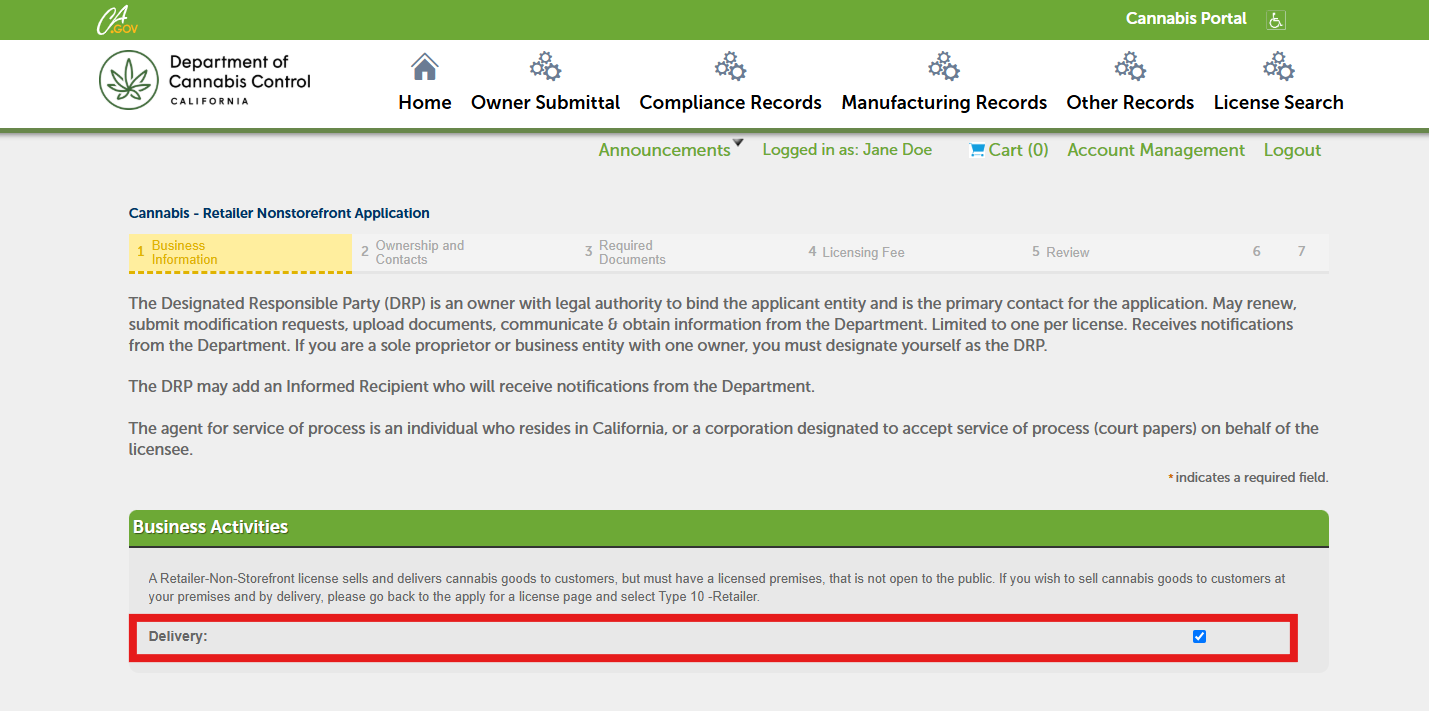
The Business Activities section shows information or required selections based on your license type. Some license types display present activities, while others allow you to select applicable activities for your operation.
Business
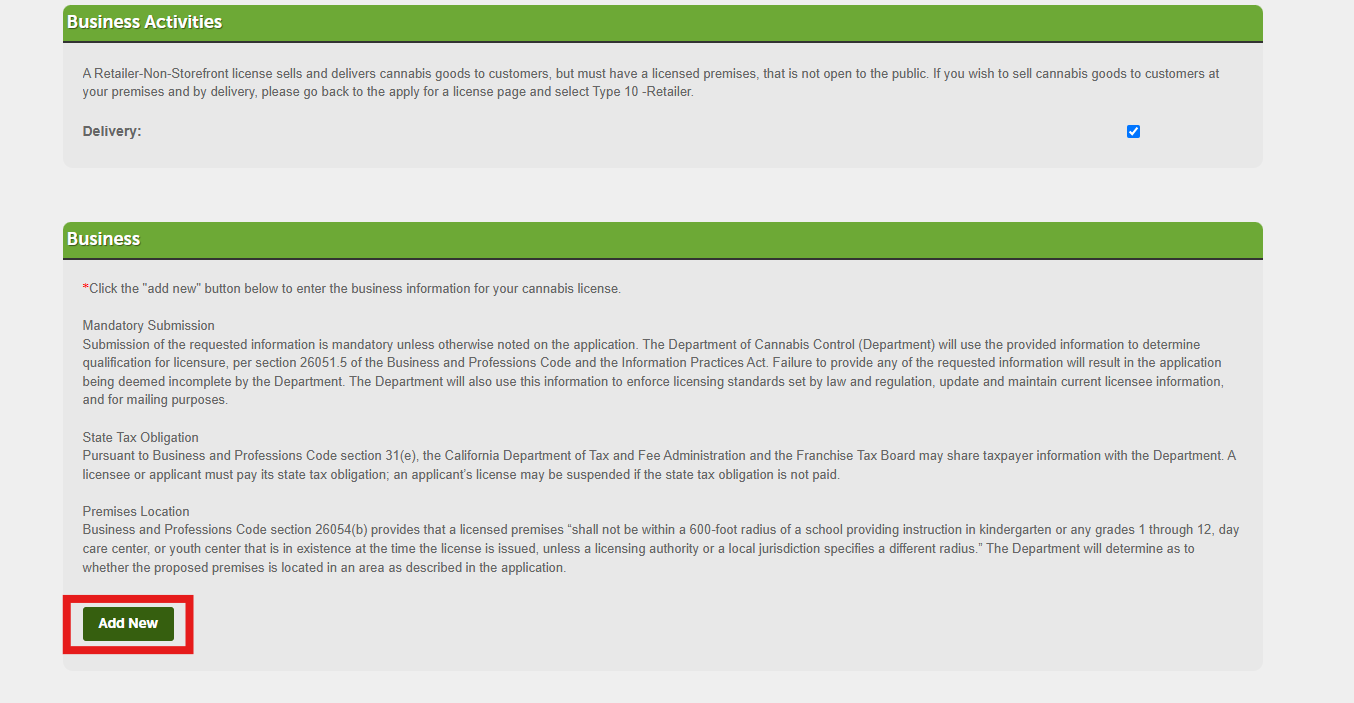
In the Business section, provide your organization’s structure and the details about how your business operates. All field on this screen are required. Click Add New to begin.
Contact/business information
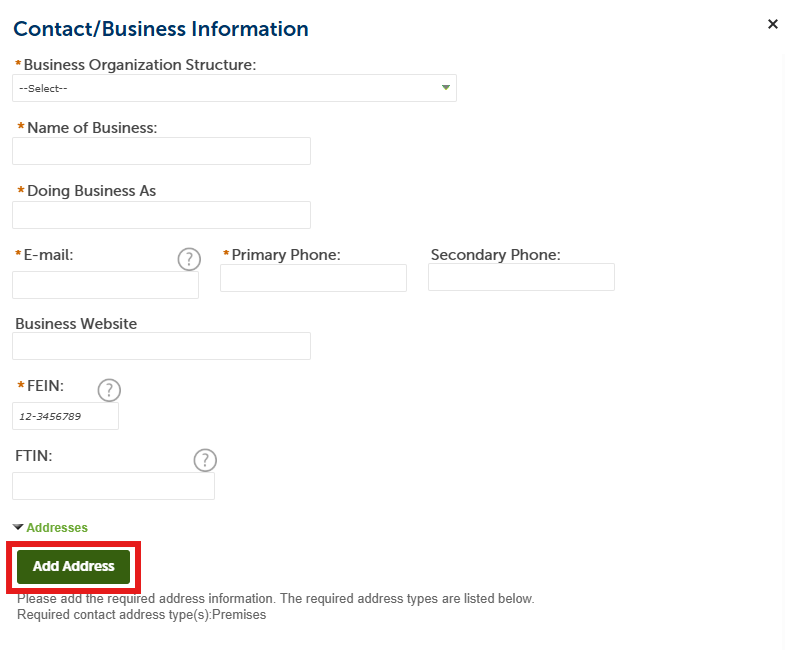
A pop-up window will open where you will enter business information. Provide the following details:
- Business organization structure (choose from drop down list)
- Name of Business/DBA
- Primary Phone Number
- FEIN
Next, click Add Address to continue.
A new pop‑up window will open. Enter Premises address and Mailing address. To enter both, use Save and Add Another. When finished, select Save and Close.
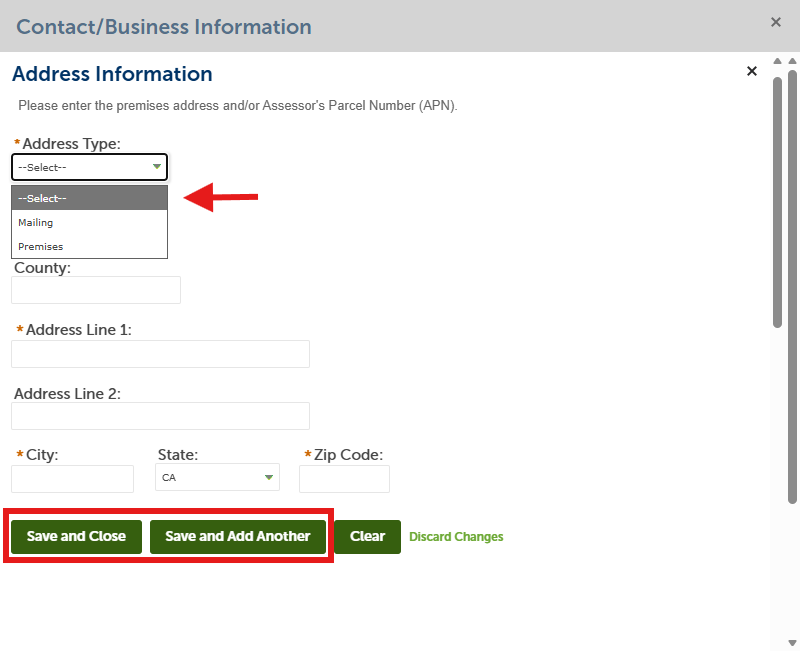
After you have entered both the Premises address and a Mailing address, click Save and Close.
Review and verify the information
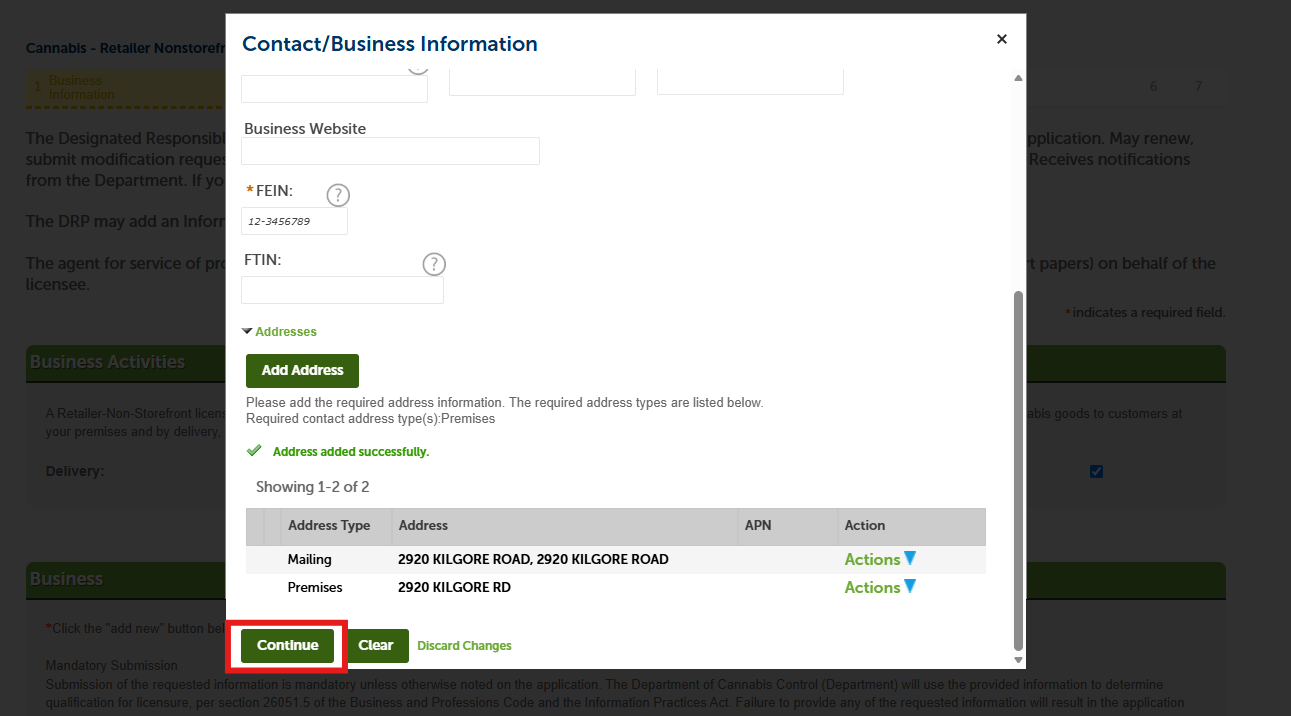
You will be back on the Contact/Business Information pop-up window. Verify all the information is correct. Click Continue to return to the application.
Designated Responsible Party, Informed Recipient and Agent for Service of Process
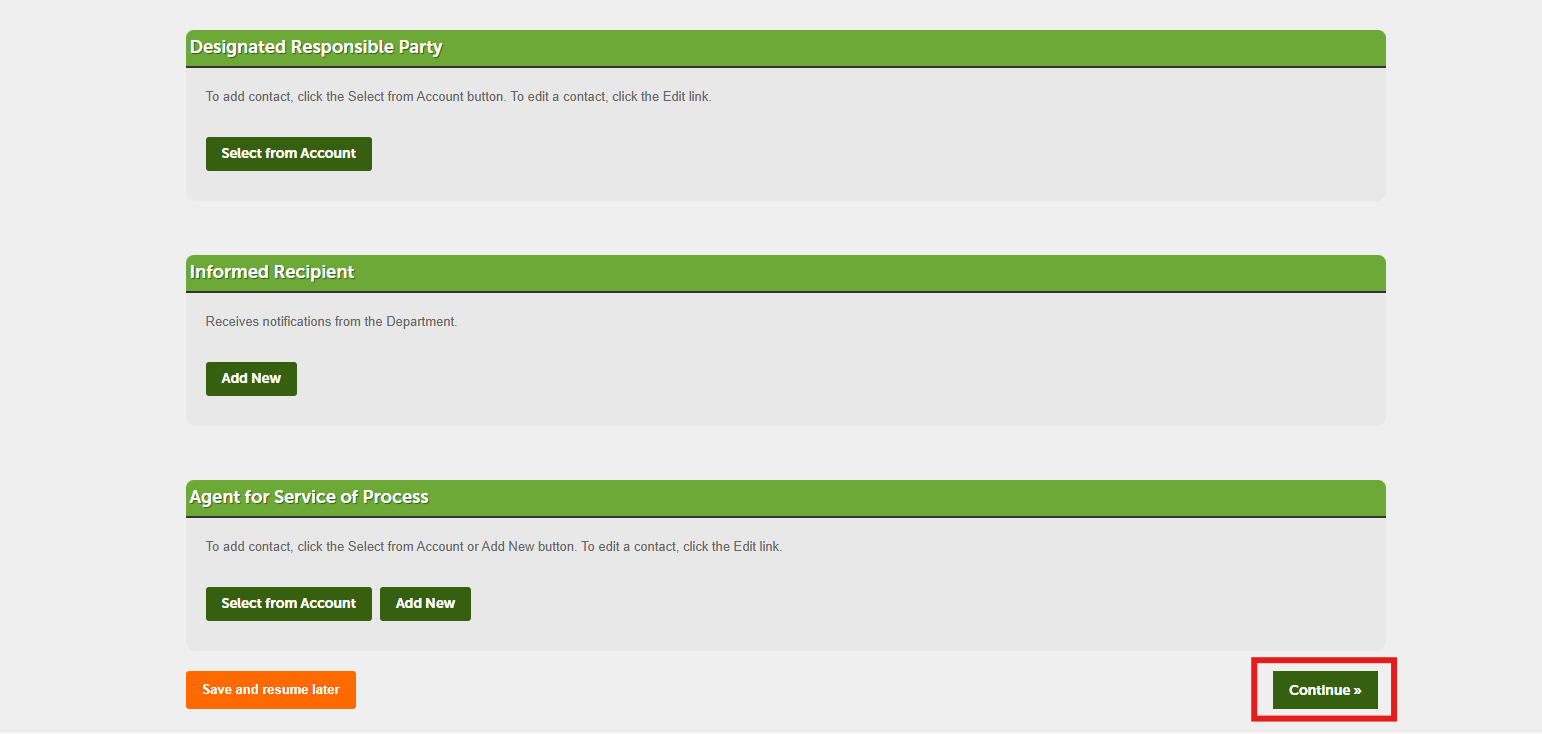
Next, enter your business’s Designated Responsible Party (DRP). The DRP is the individual owner identified by the commercial cannabis business who has legal authority to bind the commercial cannabis business and who is the primary contact for the application and license-related issues. Select From Account to add the DRP.
The Informed Recipient receives automated system notifications from the Department of Cannabis Control (DCC). Such individuals do not have access to application or license records. If you plan to add an Informed Recipient, you can click Add New to enter the individual’s contact information. The required information for the Informed Recipient is First Name, Last Name and Email Address.
The Agent for Service of Process (ASOP) must be an individual who resides in California, or a business entity designated to accept court papers on behalf of the licensee. If you plan to add an Agent for Service of Process you can click, Select from Account or Add New to add a different individual. The required information for adding or changing an ASOP is full legal name, mailing address, phone number, email address, and preferred method of written communication (e.g., standard mail or email).
Click Continue to proceed.
Declarations
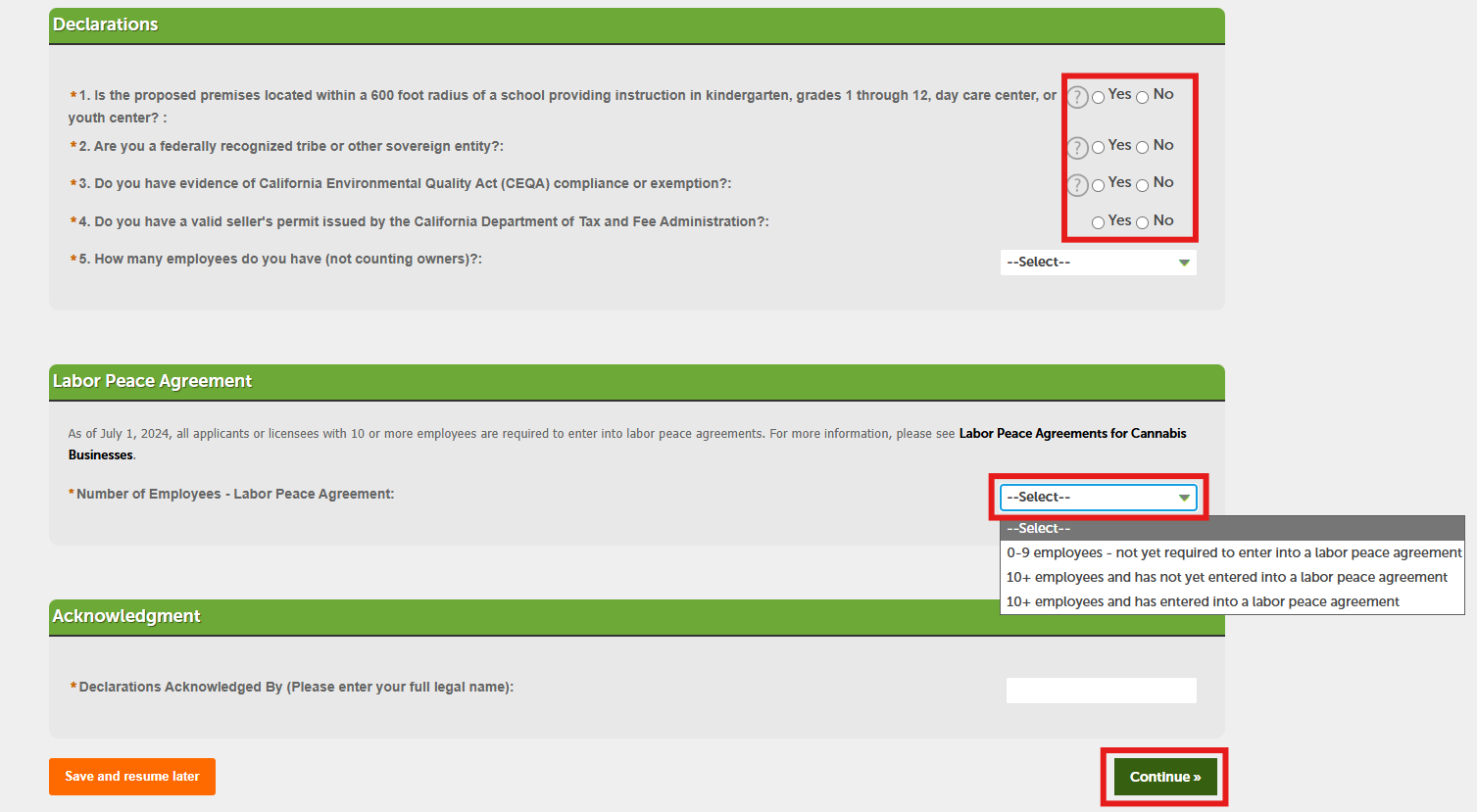
Answer the business‑related questions displayed. At the bottom of the page, electronically sign by typing your full legal name, then select Continue.
Equity information
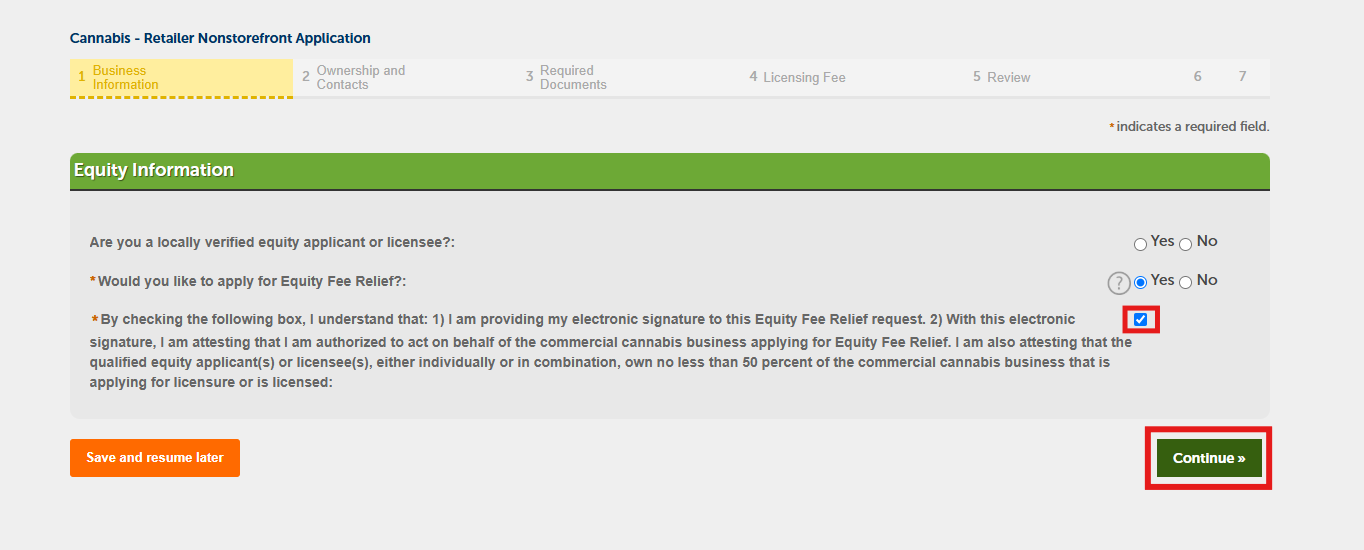
In the Equity Fee Relief section, you may choose whether to apply for equity fee relief.
If you select Yes, check the box to provide your electronic signature, then select Continue. You must also complete and submit the Equity Fee Relief form.
If you select No, select Continue to move on.
Entity ownership
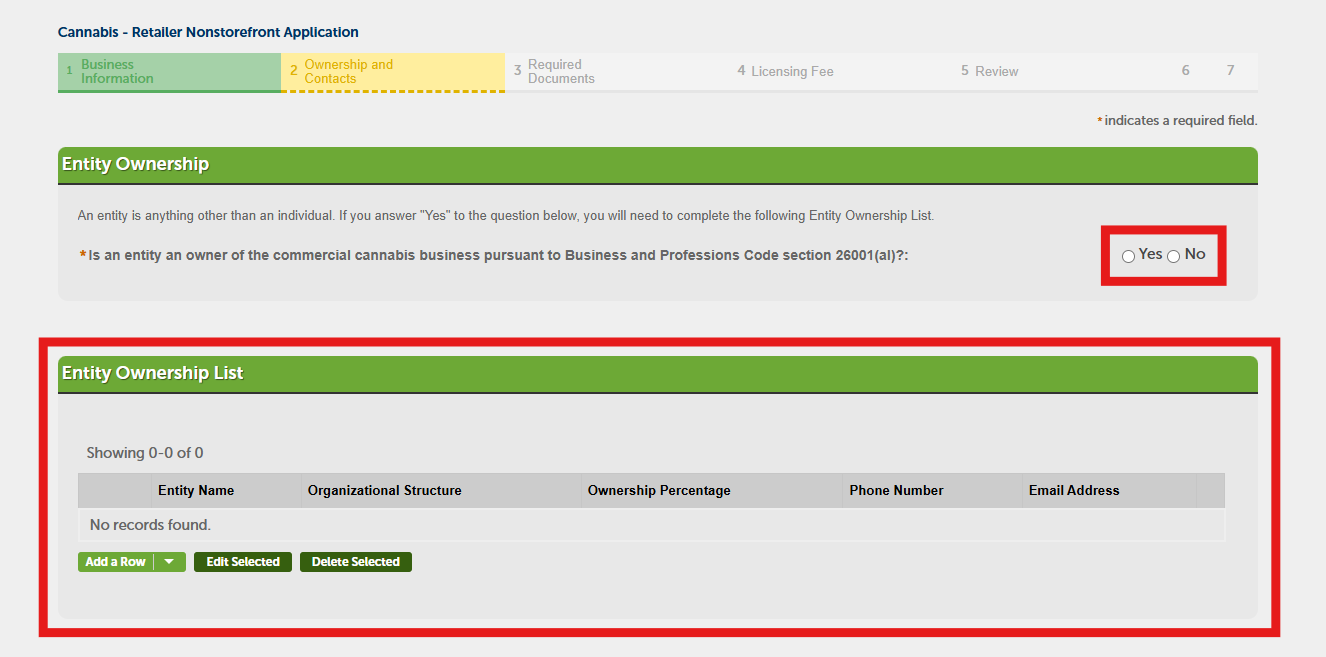
An entity is any business type that is not an individual. If you select Yes, you must complete the Entity Ownership List.
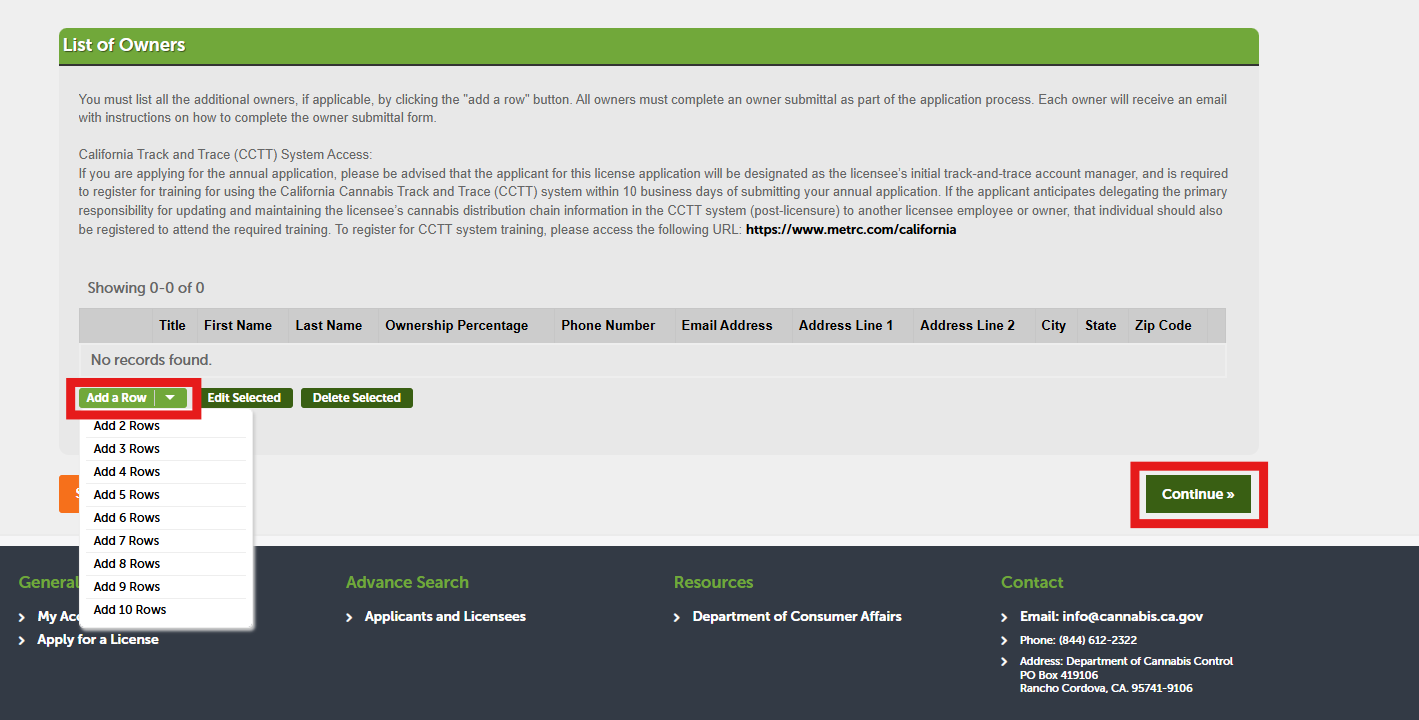
If you need to add additional owners, select Add a Row. You can also use the drop‑down list to add multiple rows at once. Each owner must create a registered user account and complete an Owner Submittal. The system sends each owner an email with instructions.
List of owners
If you need to add additional owners, select Add a Row. You can also use the drop‑down list to add multiple rows at once. Each owner must create a registered user account and complete an Owner Submittal. The system sends each owner an email with instructions.
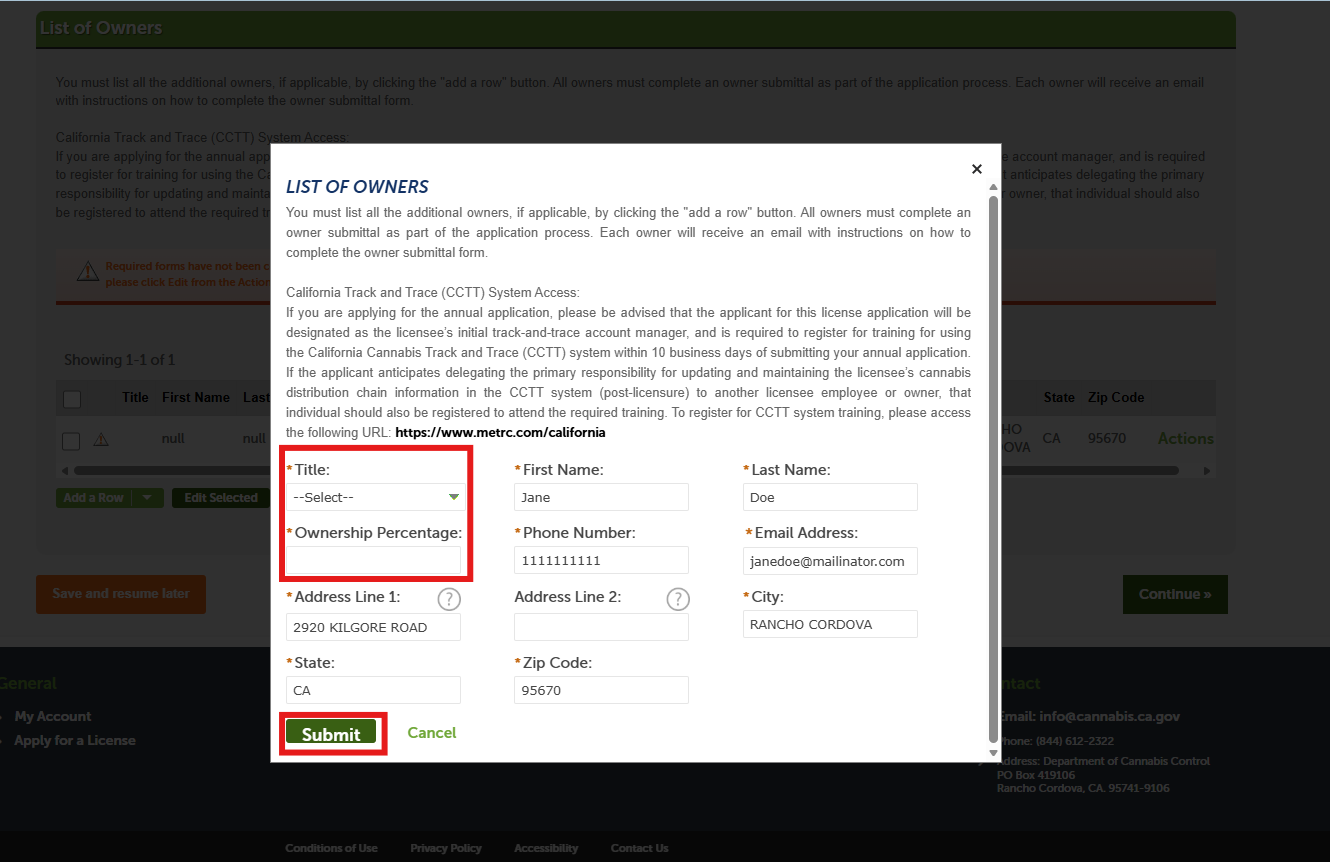
A pop‑up window will open for you to enter your business Title and Ownership Percentage. Both fields are required. Click Submit to return to the application page.
Complete the list of owners section
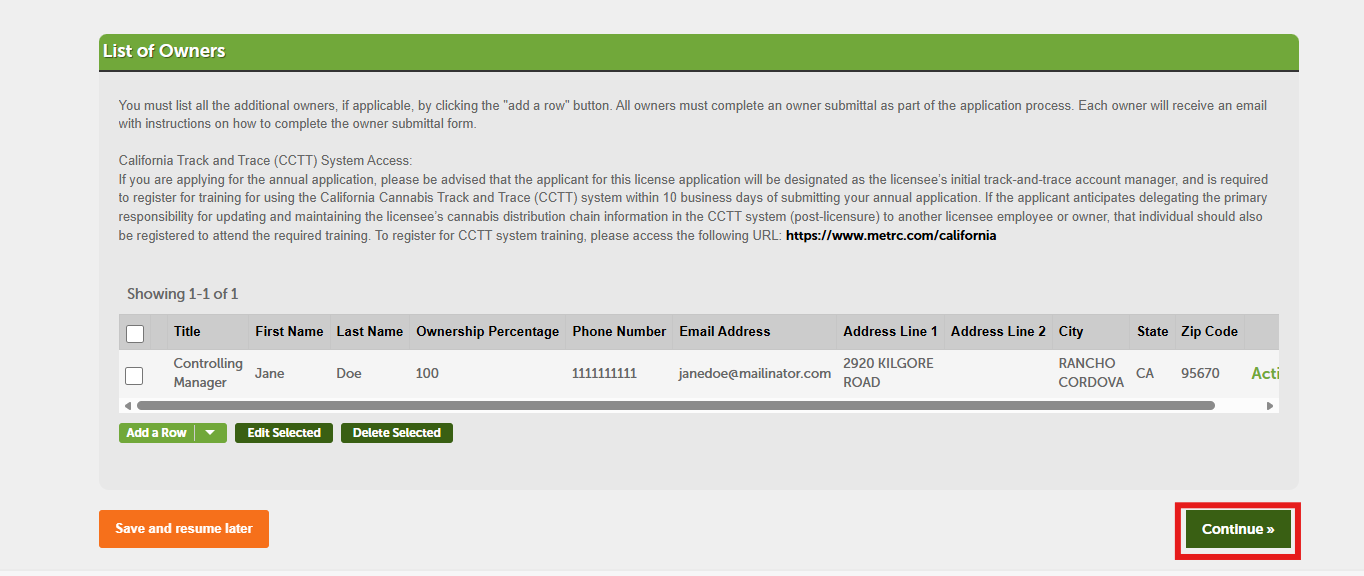
The List of Owners section is now complete. After you submit the application, the licensing system sends an email to all listed owners inviting them to log in, set up an account, and complete their Owner Submittal. They will need the application record number to link their Owner Submittal to the application. Click Continue.
CCTT system access
When you apply for a cannabis license, the Designated Responsible Party (DRP) is assigned as the business’s initial track‑and‑trace account manager. The DRP must register for California Tack and Trace (CCTT) training within ten business days of submitting the annual application.
To register for CCTT system training, please visit Metrc’s webpage.
Please note: for manufacturing applications that were submitted prior to migration (11/15/2023), the Business Contact would be the designated track and trace account manager.
Financial interest non-owners
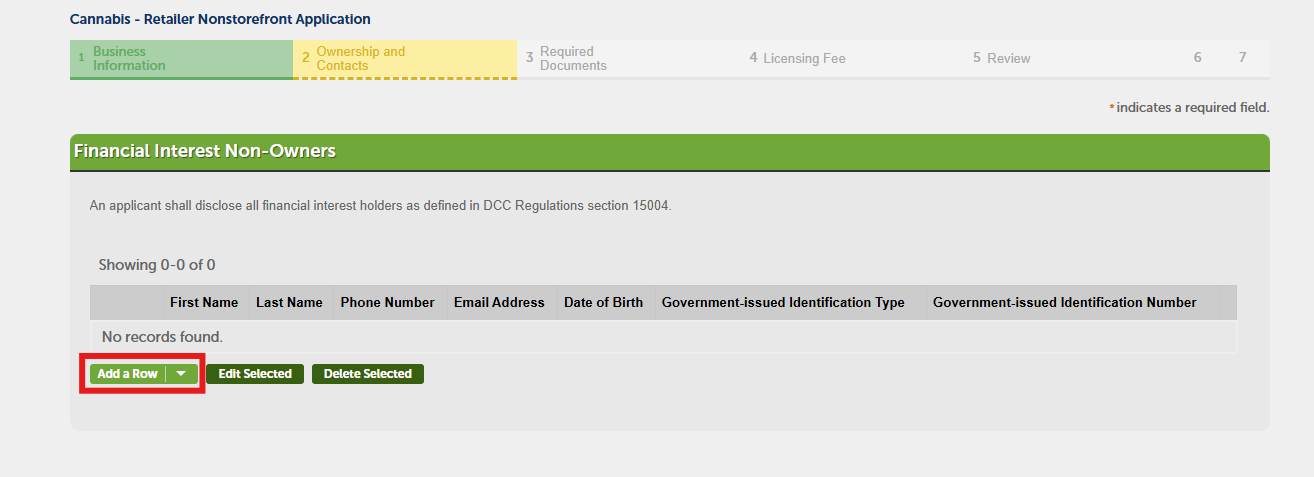
The Financial Interest Non-Owners section is used to declare the financial interests of individuals who are not listed as owners. Click Add a Row to open a pop up window and list each person and their non-controlling interest in your business.
Entity financial interest
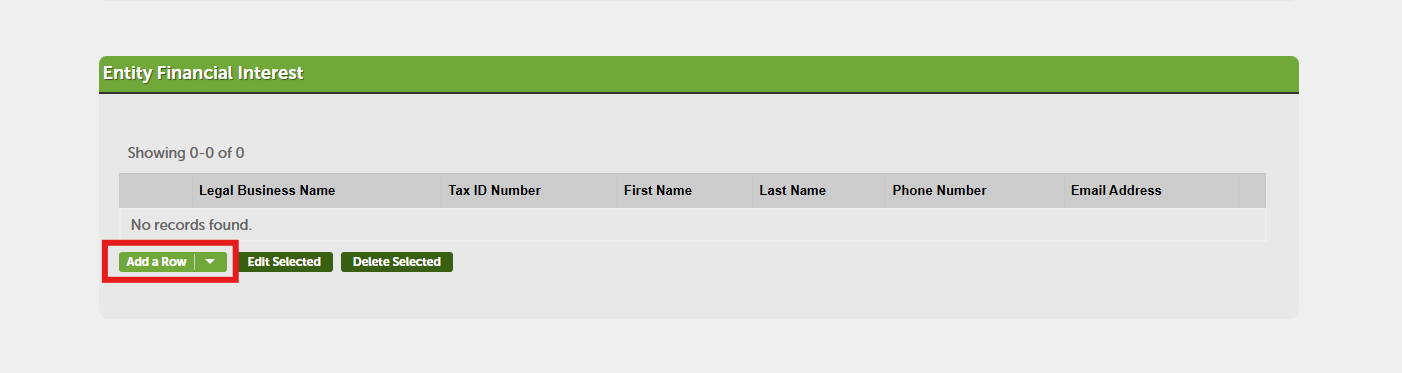
The Entity Financial Interest section is used to declare whether an entity holds a financial interest in your business. Select Add a Row to open a pop‑up window and list each entity that holds a financial interest.
Fictitious business names
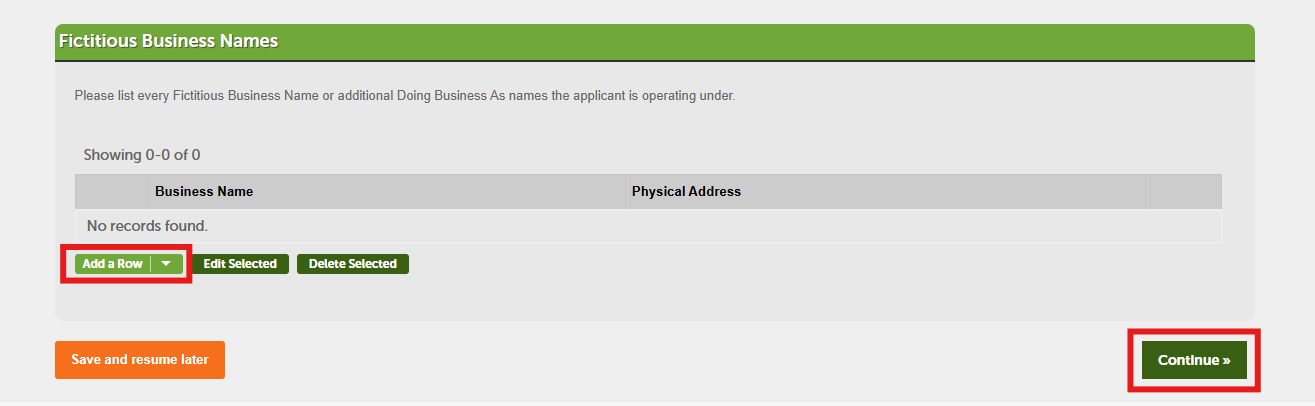
If you have one or more Fictitious Business Names (FBNs), add them in this section. Select Add a Row to enter the details in the pop‑up window. Select Continue when finished.
Required documents
The Required documents section lists the documents you must upload to support your application. The documents you need vary based on the license type and the information you provided earlier in the application. Additional documents may appear if your responses require them.
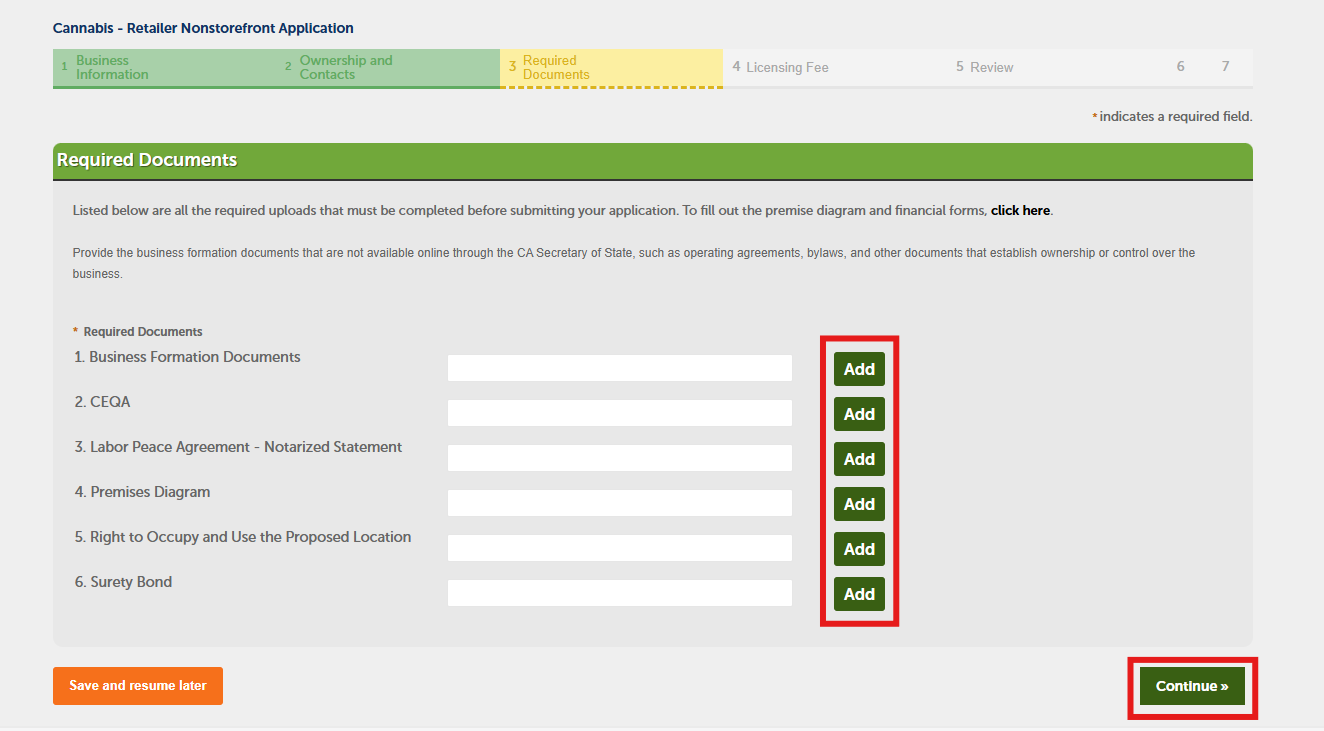
Select Add for each document on the list. Upload all required documents, then select Continue when finished.
Licensing fee determination
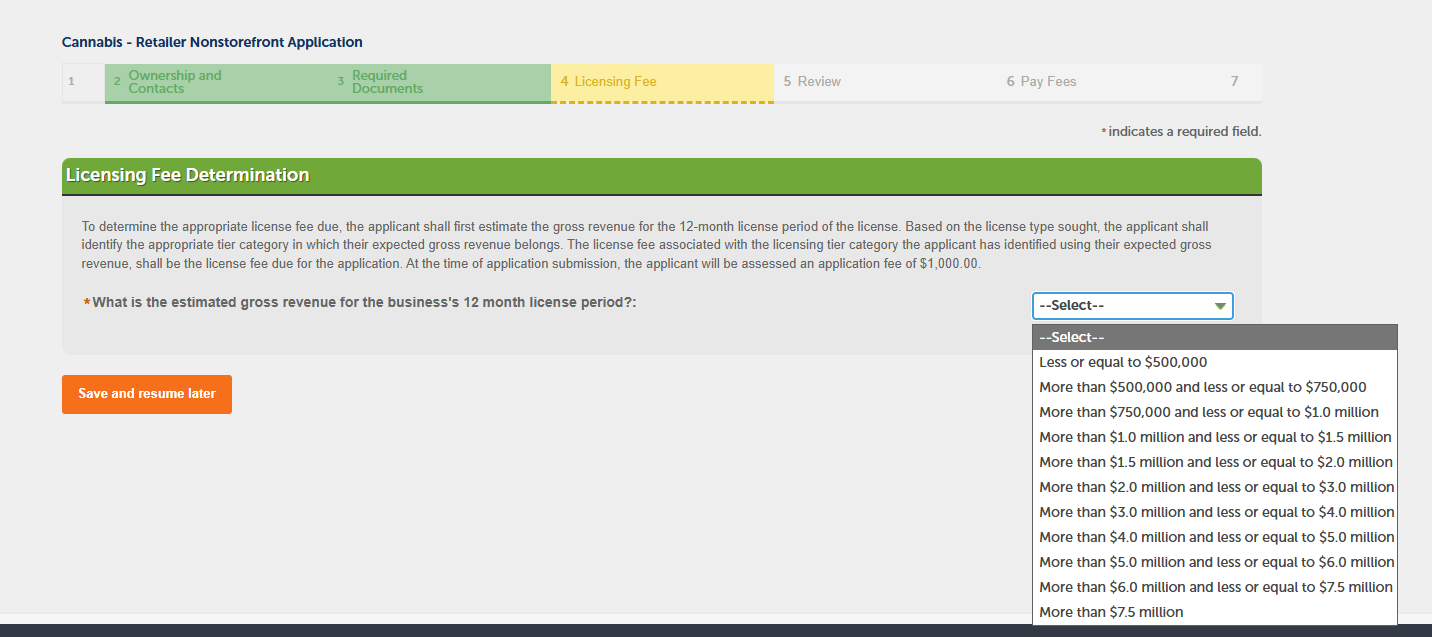
In the Licensing Fee Determination section, select the estimated gross revenue for your business’s 12‑month license period from the drop‑down menu. Your selection is used to calculate the license fee. DCC must receive the license fee payment before your license can be issued. Click Continue when finished.
Review
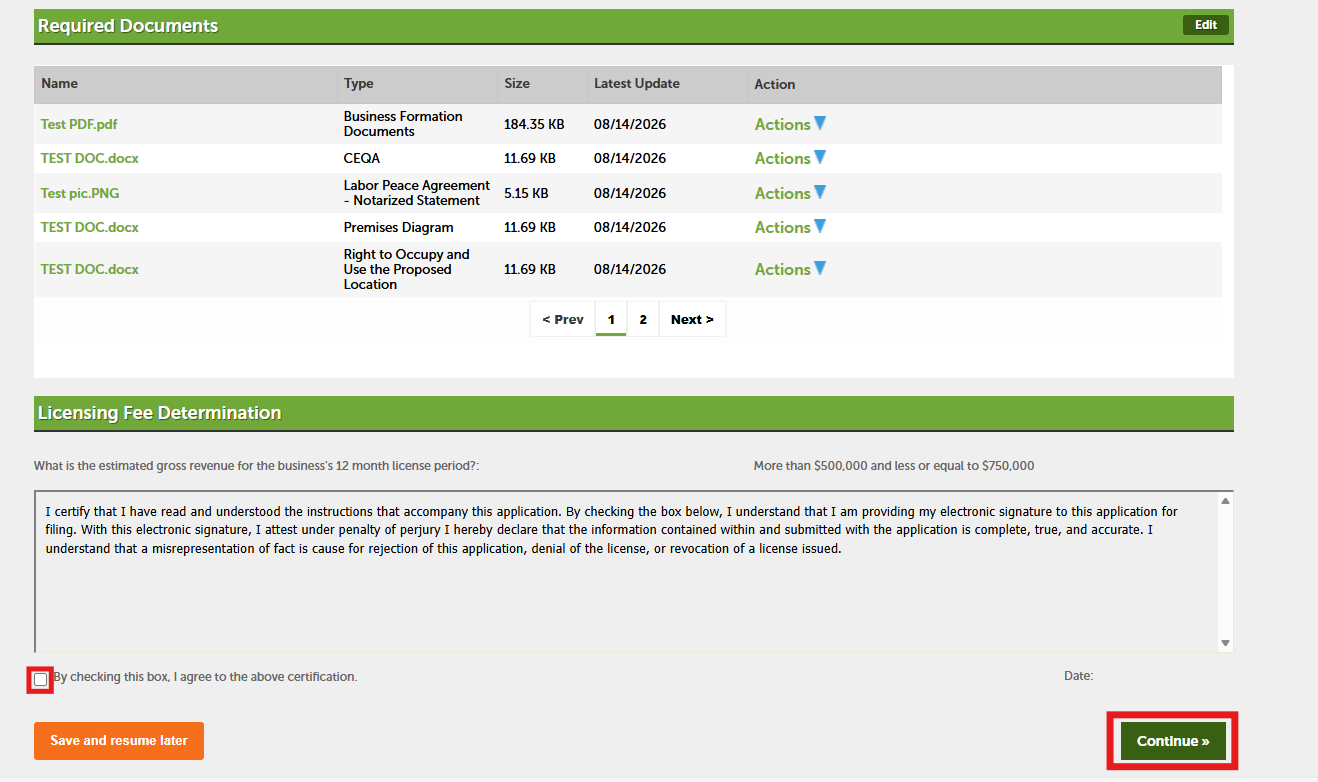
In the Review section, you can check and update the information you entered earlier in your application. At the bottom of the screen, select the checkbox to electronically sign and certify your application. Then click Continue.
Contact us
By email: licensing@cannabis.ca.gov or by phone: 1-844-61-CA-DCC (844-612-2322).
Continue to next article
-
CLEaR: How to complete an owner submittal
To complete an Owner Submittal in the CLEaR system, follow the instructions on this page. Each owner listed on a license application is required to complete their own Owner Submittal as part of the licensing process. This guide covers key steps: Each owner listed on a license application must complete a separate Owner Submittal as…